Acest ghid nu este încă disponibil în limba ta — afișăm versiunea în engleză.
How to Switch to Classic Controls in GTA 6
By the CouchVolt Team
To switch to classic controls in GTA 6, pause, open Settings, go to the controls tab and set Control Scheme to Classic. You then sprint by tapping X on PlayStation (A on Xbox), jump with Square (X on Xbox) and melee with Circle (B on Xbox), like the older games.
Why sprint feels wrong by default
GTA 6 ships with a new layout that puts sprint on L3, the left stick click. X (A on Xbox) is jump, so tapping it to run the old way only makes you hop. Classic puts the old layout back.
How to change the control scheme
- 01
Pause the game and open Settings, then the first tab, the one with your controls. You need a controller: these are gamepad layouts.
PauseSettingsControls
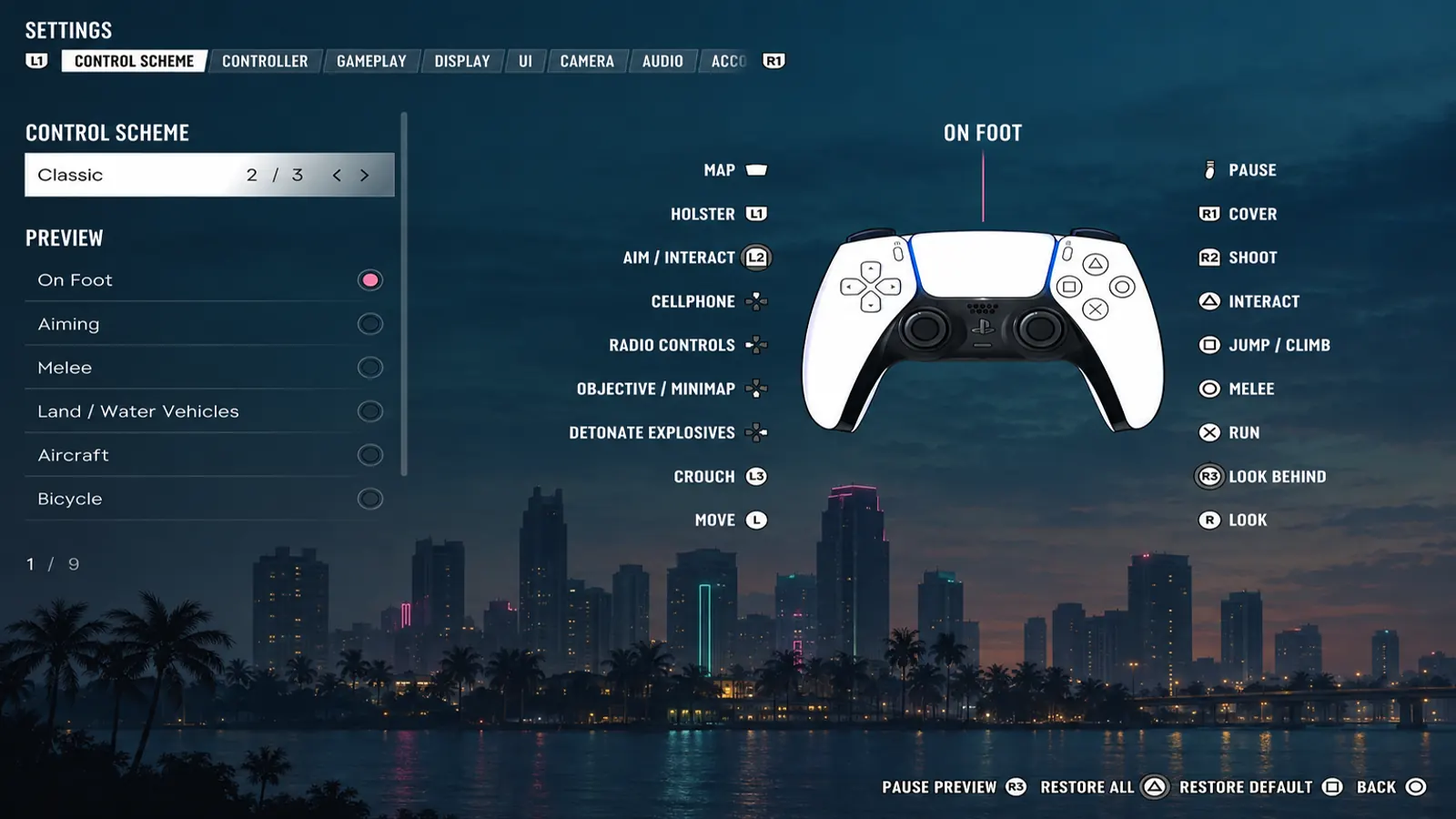
Menu as shown by gameranx, repainted - 02
Scroll to Control Scheme. The controller picture under it shows the current bindings: sprint on L3, jump on X, crouch on Circle, melee on Square.
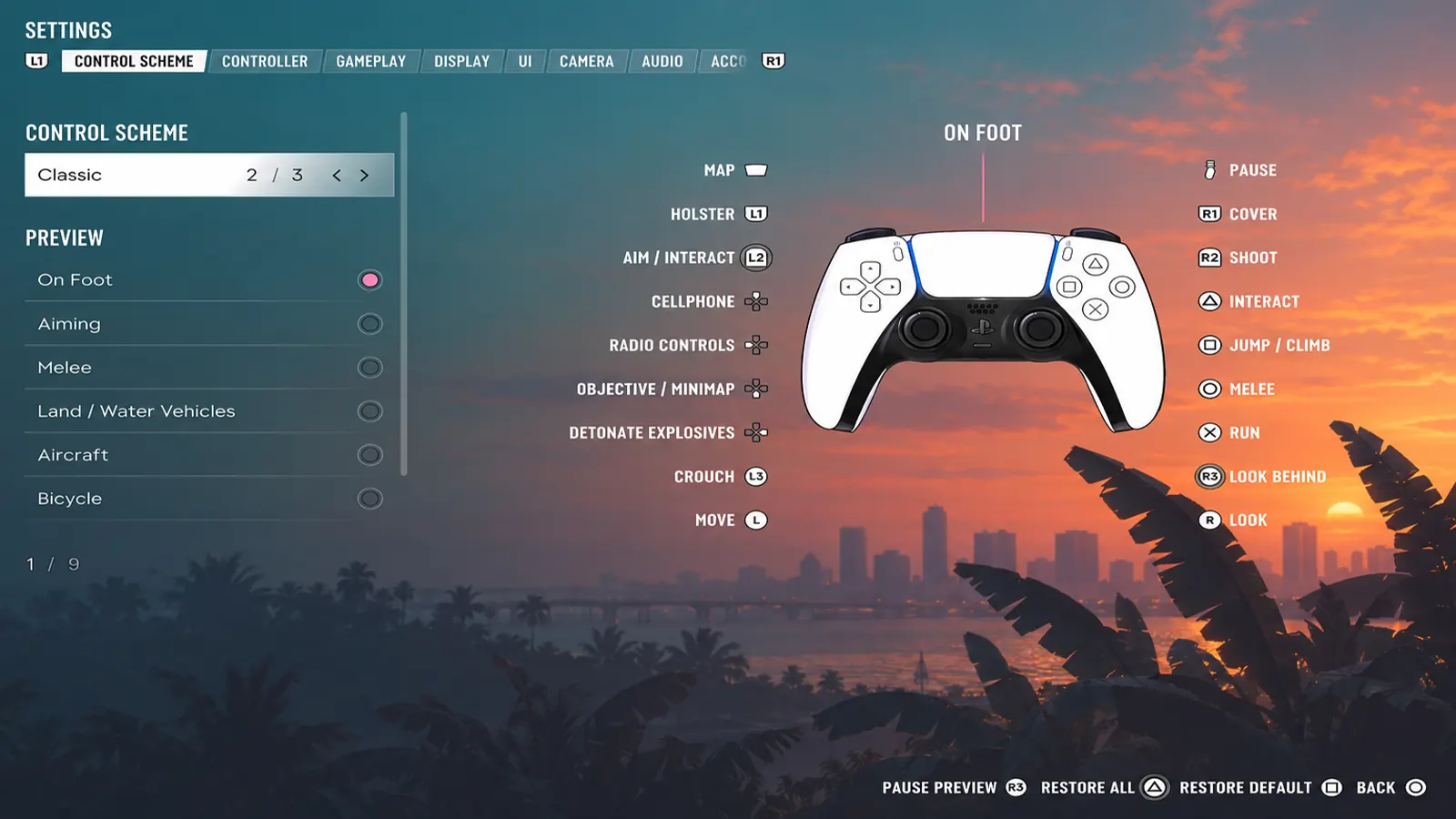
Menu as shown by gameranx, repainted - 03
Cycle the option. There are three layouts: Default, Classic and Left-Handed. Set it to Classic.
Control SchemeClassic
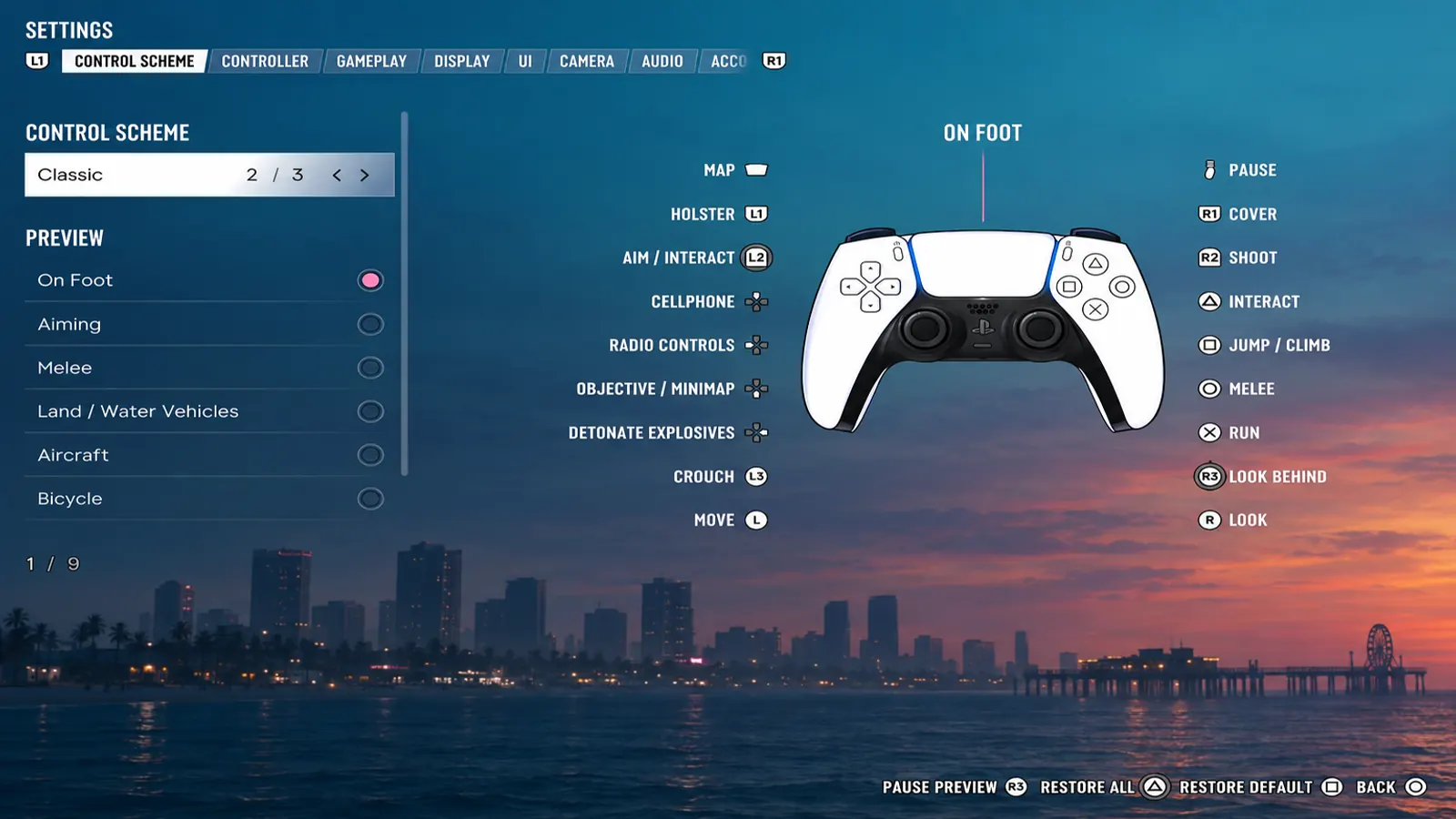
Menu as shown by gameranx, repainted - 04
Sprint now works by tapping X on PlayStation or A on Xbox. L3 becomes crouch.
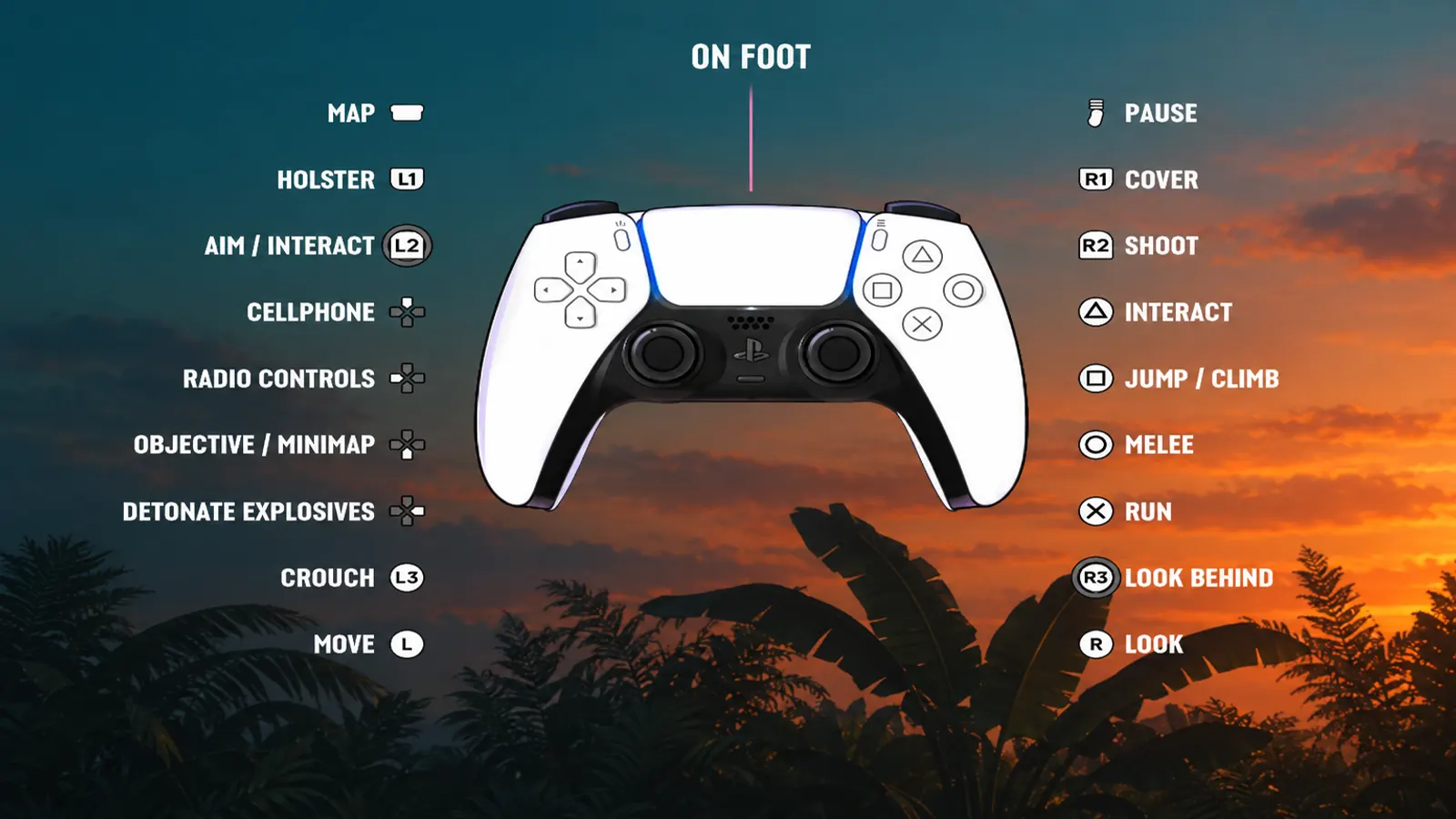
Menu as shown by gameranx, repainted - 05
Check the picture before you leave: jump moved to Square (X on Xbox) and melee to Circle (B on Xbox). Look at the aiming and aircraft pages too, because more than sprint changes.
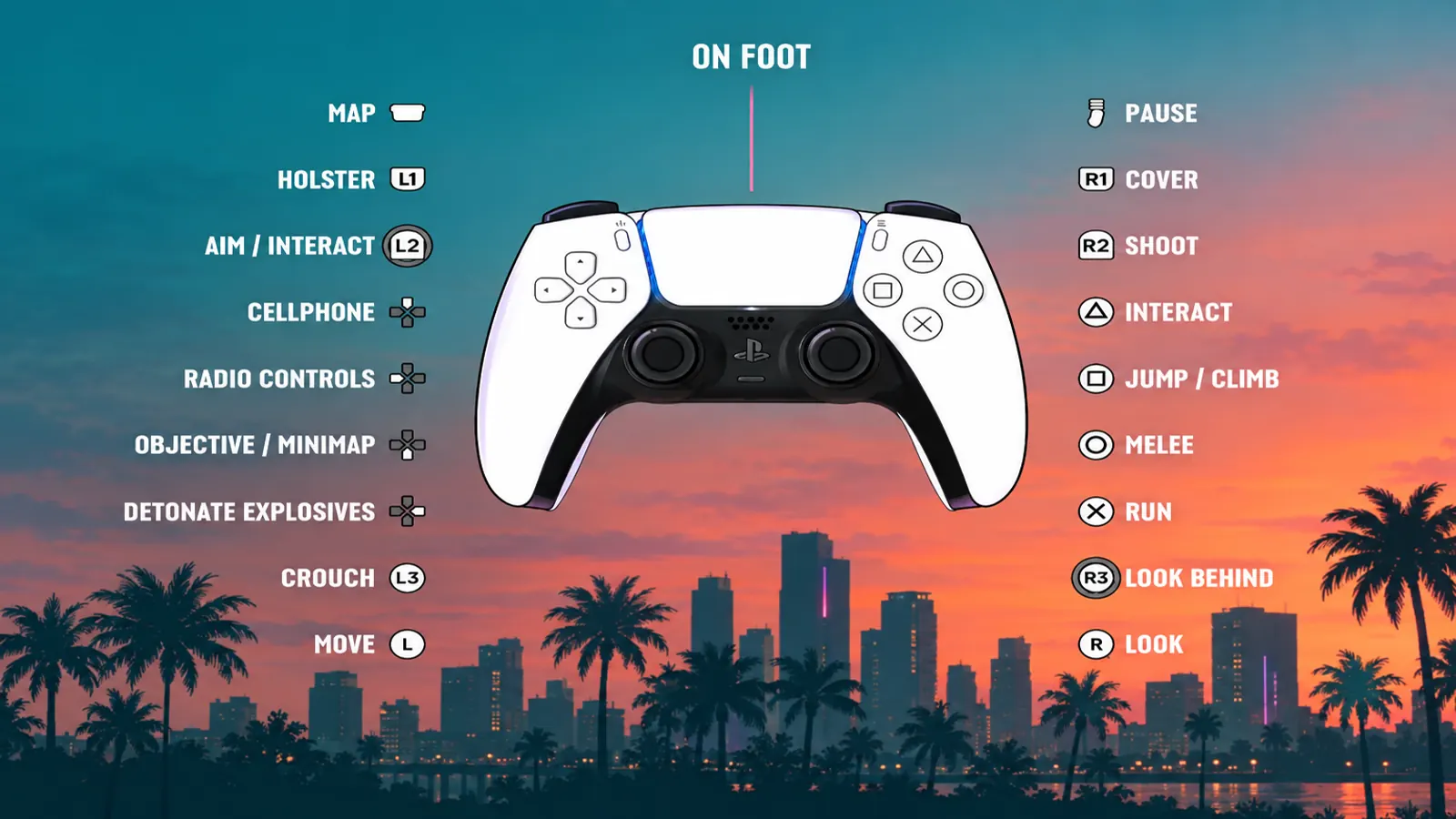
Menu as shown by gameranx, repainted
Classic or Default?
- Pick Classic if you've played the older games and tapping to sprint is in your hands.
- Stay on Default if you fly a lot: Classic doesn't bring back the old flight controls, and aircraft yaw stays on Square and Circle instead of L1 and R1.
- Try Left-Handed if you want the sticks and shoulder buttons mirrored, so you sprint with the right stick and shoot with L2.
What people get wrong
- Thinking only sprint changes. Classic remaps jump, melee and crouch too.
- Tapping to sprint and losing the camera. A claw grip helps, or adjust the movement speed setting.
- Expecting the old flight controls. Aircraft yaw stays on Square and Circle.
Related guides
- How to Keep a Spare Outfit in Your Car in GTA 6Keep a spare outfit in your car's trunk in GTA 6 and change at the car to clear the clothing clue from your heat. Wardrobe, presets and trunk, step by step.
- How to Register a Stolen Car in GTA 6 (6 Steps)Register a stolen car in GTA 6 and keep it for good: unlock Moses's garage in Chapter 2, scan for no tracker, lose the cops, respray, then register.
Sources
We write the guides in our own words from what several creators show. The links go to the creator's video at the relevant moment.
- TGG0:29
- MrRoflWaffles0:49
- Nerpah0:32
- PhillyBeatzGames0:17
- Jay Dunna0:28
Want to play GTA 6 online on PC, or anywhere?
CouchVolt streams a real console to your PC, Mac, phone or TV. Sign in with your own Xbox or PlayStation account and play the copy of GTA 6 you own.
Create free accountCouchVolt is independent and not affiliated with Rockstar Games or Take-Two Interactive. Game names belong to their owners.